User Settings
Gallery gives each user the ability to manage their own settings. This includes being able to update their profile, toggle certain feature, generate API keys, manage the logged in devices, a view of account usage statistics, and more.
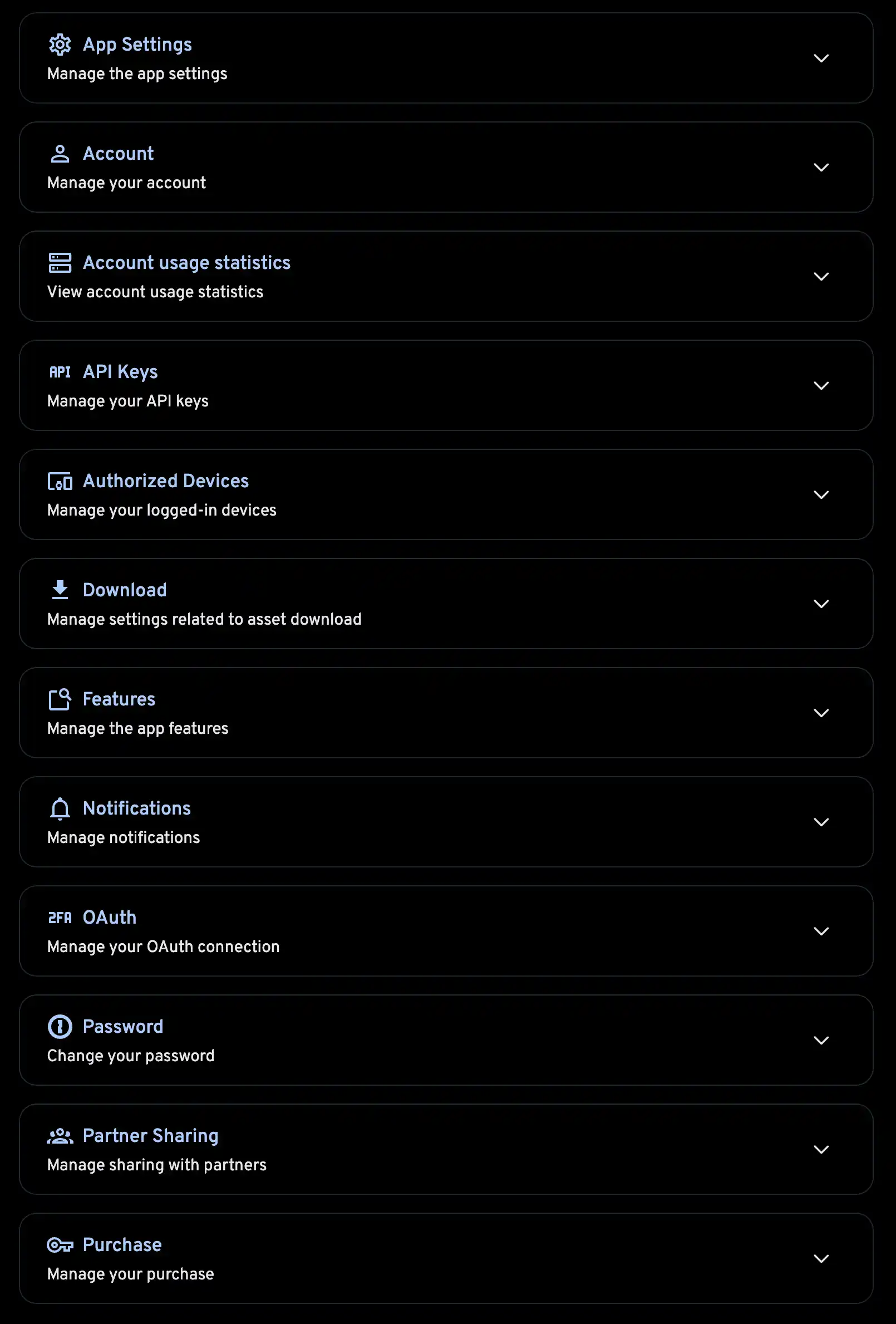
You can access the user settings by clicking on the user icon on the top right corner of the screen and selecting the Account Settings option.


Sidebar
App Settings → Sidebar controls how much room the navigation sidebar takes on screen.
| Mode | Behaviour |
|---|---|
| Automatic (default) | Expanded on wide screens (1279px and up), compact between 850px and 1279px |
| Always expanded | Full-width sidebar with labels, whatever the window size |
| Always compact | Icon-only rail, whatever the window size |
In the compact rail, hover or tab into the sidebar and it expands over the page so you can read the labels. Move away and it collapses again. The photo grid underneath holds its position, so nothing jumps while you are pointing at it. On touch devices, the menu button in the top bar opens the same expanded view.
Below 850px the sidebar is hidden entirely in every mode and opens as an overlay from the menu button: a rail costs width a phone cannot spare.
The browser stores this choice locally. It does not follow your account, so each device or browser you sign in from keeps its own setting.
Filter sections
Pages with a filter panel (Photos, Recently added, album detail and Spaces) let you choose which filter sections it offers. Open the panel and use the cog beside the Filters heading to tick the sections you want. Show all brings them all back.
Hidden sections keep any filter you had already applied. When that happens a dot appears on the cog, and again beside the section's name in the menu, so an active filter you cannot see is still visible from the outside.
The admin can reset a user password through the User Management screen.
The admin password can be reset using a Server Command