Shared Spaces
Shared Spaces are virtual libraries that several people browse and add to together. Partner Sharing hands over your whole library, one way. A Shared Space is narrower: you choose what goes in, and every member gets a role that decides what they can do with it.
Gallery checks the caller's role on every endpoint. The three roles (Owner, Editor and Viewer) decide what a member can do with assets, search, downloads, people and the space's own settings.
Key Features
- Reference-based sharing. Photos are linked into a space rather than copied, so a space costs no extra storage.
- Role-based access. Owner, Editor and Viewer, each with different permissions.
- Multiple spaces. Create as many as you need, for example "Family", "Friends" or "Vacation 2025".
- Works alongside existing sharing. Partner sharing, album sharing and shared links keep working as before.
- Public links that match the space. An Owner or Editor can share a link covering what the space shows, contributions included. See Sharing from a Shared Space.
- Web and mobile. Full support on both web and the mobile app.
- Shared face recognition. People detected across the space are browsable by all members.
- Activity log. A feed of everything that happened in the space: photos added or removed, members joining or leaving, settings changes.
- New since last visit. See what changed since you last opened a space, with badges and timeline dividers.
- Map view. Browse a space's geotagged photos on an interactive map.
- Search within a space. Smart search scoped to a single space's assets.
- Connected libraries. Admins can link external libraries to spaces, which pulls in every photo the library holds.
- Space albums. Link whole albums into a space and collaborate across owners. See Space Albums.
- Album folders. Group a space's albums into nested folders so a busy space stays navigable. See Space Album Folders.
Roles and Permissions
| Permission | Owner | Editor | Viewer |
|---|---|---|---|
| View assets in space | Yes | Yes | Yes |
| Download assets | Yes | Yes | Yes |
| Add own assets to space | Yes | Yes | No |
| Remove assets from space | Yes | Yes | No |
| Set cover photo | Yes | Yes | No |
| Rename / edit space details | Yes | Yes | No |
| Invite/remove members | Yes | No | No |
| Change member roles | Yes | No | No |
| Toggle face recognition | Yes | No | No |
| Change space color | Yes | Yes | No |
| Delete the space | Yes | No | No |
| Leave the space | No | Yes | Yes |
| Search within space | Yes | Yes | Yes |
| Create a public share link | Yes | Yes | No* |
| View activity log | Yes | Yes | Yes |
| View space on map | Yes | Yes | Yes |
| Manage people (name, merge) | Yes | Yes | No |
| Show/hide people | Yes | Yes | No |
| Toggle timeline integration | Yes | Yes | Yes |
| Link/unlink libraries* | Yes | Yes | No |
* Requires server admin privileges in addition to the space role.
* A Viewer can still create a public link covering their own photos; only a link that also includes other members' contributions needs the Owner or Editor role. See Sharing from a Shared Space.
For album-specific permissions (linking and creating albums, contributing photos across owners, and controlling which albums appear in the space timeline) see Space Albums.
Creating a Space
Web
- Click Spaces in the left sidebar.
- Click the Create Space button.
- Enter a name and optional description.
- Optionally choose a color for the space (used for card gradients and visual identity).
- You are automatically added as the Owner.
Mobile
- Tap the Spaces tab in the bottom navigation bar.
- Tap the + button.
- Enter a name and tap Create.
Getting Started Banner
When you create a space, a 3-step checklist appears at the top of the space page. Only the Owner sees it.
- Add Photos. Add your first photos to the space.
- Invite Members. Add at least one other user.
- Set Cover. Choose a cover photo for the space.
The banner carries a progress bar and disappears once all three steps are done. Collapse it if you want it gone early.
Adding Members
From the space detail page, the Owner can invite other users:
Web
- Open the space.
- Click the Members icon in the toolbar.
- Click Add Member and select users from the list.
- Choose a role: Editor (can add/remove photos) or Viewer (can only browse).
Mobile
- Open the space.
- Tap the people icon in the toolbar.
- Tap the + icon to add members.
- Select users from the list and tap Add.
Adding Photos to a Space
Editors and Owners can add photos from their personal library into a shared space:
Web
- Open the space.
- Click the Add photos button in the toolbar.
- Your personal timeline appears. Select the photos you want to add.
- Click Add to link them into the space.
Mobile
- Open the space.
- Tap the camera+ icon in the toolbar.
- Select photos from your library.
- The selected photos are added to the space.
Photos are linked by reference. They stay in your personal library and also show up in the space for every member. Removing a photo from a space does not delete it from your library.
Got a Lot of Photos?
If you want to share a large part of your library with a space, there are two approaches:
Option 1: Bulk Add All Photos
Use Add all my photos from the overflow menu (⋮) in the space toolbar. It queues a background job that adds every photo in your library to the space, with nothing to select by hand. You get a notification when it finishes. Pick this when you want your whole library in the space and do not mind it all arriving at once.
- Available to Editors and Owners
- Runs in the background, so it is safe for libraries with hundreds of thousands of photos
- Idempotent: running it again will not create duplicates
- Only adds assets that are neither deleted nor offline
Option 2: Connect a Library
If you are a server admin, link an external library to the space instead. The space then stays in sync on its own: new photos imported into the library show up in the space with no delay. The link persists, so future imports are included too.
| Bulk Add | Connected Library | |
|---|---|---|
| Who can use it | Editors, Owners | Server admins with Editor+ role |
| Adds existing photos | Yes, all at once | Yes, all at once |
| Future photos included | No, run again to catch up | Yes, automatically |
| Can disconnect later | Remove photos manually | Unlink in one click |
| Best for | One-time "share everything" | Ongoing sync of an external source |
Albums in a Space
Owners and Editors can also link whole albums into a space. A linked album's photos appear in the space for all members, on a dedicated Albums tab with the same search, sort, group and view controls as your personal Albums page. Members can contribute photos they do not own into a shared album, so collaboration crosses library boundaries, and each album has its own switch for whether its photos join the space timeline.
Viewers browse space albums read-only; linking, creating, editing, and contributing are Editor/Owner actions.
For the full walkthrough (linking versus creating, cross-owner contributions, per-album timeline control, and the complete permissions table) see Space Albums.
Removing Photos from a Space
Web
- Open the space.
- Select the photos you want to remove (click to select, shift-click for range).
- Click the Remove from space button in the action bar.
- Confirm the removal.
Mobile
- Open the space.
- Long-press to select photos.
- Tap Remove from Space in the bottom sheet.
Stacked Photos
Stacks (for example a RAW + JPEG pair or a burst) are treated as a single unit in a space:
- Adding any frame of a stack contributes the whole stack. The space collapses it to the stack cover with a badge showing the frame count, exactly like your main timeline. Tap or click through to see every frame.
- Removing any frame removes the whole stack, so no hidden frames are left behind.
- Changing the cover (promoting a different frame to primary) keeps the stack visible in the space.
Only frames with space-eligible visibility are pulled in. Hidden and Locked frames are never added automatically.
Timeline Integration
Photos from a space you belong to are merged into your main Photos timeline alongside your own assets, which is what makes a space feel like part of your library. Three independent switches control this, each with exactly one job:
| Switch | Who can change it | Controls |
|---|---|---|
| Hide all space photos from my timeline | Any member (yourself only) | Everything in this space, in your own timeline |
| Hide this album from my timeline | Any member (yourself only) | This one album, in your own timeline |
| Hide this album from the space's photos | Owners and Editors | Whether the album appears in the space itself, for everyone |
The first two are personal viewing preferences. Open the space's or the album's three-dot menu (⋮) to toggle them. Nobody else can change what appears in your own timeline, and toggling them changes nothing for other members. The third is a shared setting, on the album's kebab menu in the Albums tab. It changes what the whole space shows, so only Owners and Editors can flip it, and it never touches anyone's personal timeline.
A photo disappears from your timeline only when you have hidden every way it reaches you through a space. A photo in two albums where you hid only one still shows. So does a photo added to the space directly as well as through a hidden album.
| Asset's space presence | Shows in your timeline? |
|---|---|
| Not in any space | Yes |
| Only in an album you've hidden, in a space you show | No |
| Only in a space you've hidden (any path) | No |
| In an album you hid and an album you didn't | Yes |
| In an album you hid and also added to the space directly | Yes |
| In a space you hid and a second space you show | Yes |
| In an album hidden from the space's photos, but not hidden by you | Yes |
Hiding tidies your view. It never restricts anyone's access. It changes what appears in your own timeline, or, for the editor switch, the space's own Photos tab. Hidden photos stay fully visible in the space itself, in search and in any shared link. To actually restrict access, expire or delete the shared link, or unlink the album from the space.
Where hiding applies
Hiding is a timeline preference, so it reaches the surfaces that make up your timeline, and deliberately nothing else:
| Follows your hide | Ignores it, the photos stay |
|---|---|
| Main Photos timeline (and its date scrubber) | The space itself, and album pages |
| Folders view | Search, Map, the People page |
| Memories | Trash, Archive, Favorites |
| The mobile timeline | Any shared link |
Trash, Archive and Favorites keep hidden photos on purpose: those are the places you go to find or recover something, so hiding a photo must never make it unreachable there. A photo you hid and later deleted is still in your trash, and still restorable.
Memories and Folders follow the same "every path must be hidden" rule as the timeline, so a photo your timeline still shows is never quietly missing from a memory.
Only your own photos and the space content you can see are affected. Your hiding never removes photos a partner shared with you. Those follow their sharing setting.
What the confirmation tells you
Hiding asks for confirmation and states how many photos it will actually remove from your timeline. When that number is smaller than you expect, sometimes zero, the dialog also says how many stay because they reach you by a path you have not hidden.
That is the usual surprise: a photo can be in a linked album and in a linked external library, or added to the space directly as well. Hiding the album alone changes nothing for those photos until the other path is hidden too, so hide the whole space (or unlink the library) if you want them all gone.
Timeline integration cannot be combined with archive, favorites, or trash filters.
Renaming and Editing Space Details
Owners and Editors can rename a space or update its description and color at any time. There are two entry points:
- Overflow menu. Open the space and click the three-dot menu (⋮) in the header, then select Edit Space.
- Cover ✎ button. Click the ✎ (edit) button on the space cover, then choose Edit Space from the menu.
Both open the same modal, where you can update the name, description, and color, then click Save. Renames and other detail changes are recorded in the space's activity log.
Space Covers
Spaces display as album-style cards with cover photos, collage thumbnails, member avatars, and asset/member counts.
Setting a Cover Photo
Owners and Editors can set a cover photo:
- Open the space.
- Select a single photo.
- Choose Set as space cover from the action menu.
Alternatively, click Set cover photo in the hero banner at the top of the space detail page.
Repositioning the Cover
After setting a cover photo, you can adjust its vertical position within the hero banner:
- Click Reposition on the hero banner.
- Drag the image up or down to frame it how you like.
- Click Save to keep the position, or Cancel to discard.
The cover enters reposition mode on its own after you pick a new cover photo. Position is stored as a percentage (CSS only, with no server-side image processing) and resets when the cover photo changes.
Collage Cards
On the spaces list page, each space card shows a collage of up to 4 recent photos. The layout adapts based on how many photos the space contains:
- No photos: color gradient placeholder
- 1 photo: single full-bleed thumbnail
- 2 or 3 photos: asymmetric layout (3:2 split)
- 4 or more photos: 2×2 grid
Browsing Spaces
List and Grid Views
The spaces list page supports two view modes, toggled via icons in the toolbar:
- Grid view, the default: album-style collage cards
- List view: a compact table with columns for name, role, photo count, member count and last activity
Sorting
Sort spaces by name, last activity, date created, or asset count. Click the same sort option again to reverse the order.
Pinning Spaces
Pin frequently used spaces to the top of the list by right-clicking (web) and selecting Pin to top. Pinned spaces appear in a separate section above unpinned ones, in both grid and list views. Pins live in the browser's local storage, so they do not sync between devices.
Activity Log
Every space has an activity log that tracks actions taken by members. Open it by clicking the panel icon in the space toolbar to reveal the side panel, then select the Activity tab.
Tracked Events
The activity log records the following events:
- Photos added. Who added photos, how many, with thumbnail previews of the first few.
- Photos removed. Who removed photos and how many.
- Member joined. Who joined the space, their role, and who invited them.
- Member left. Who left the space voluntarily.
- Member removed. Who was removed by the Owner.
- Role changed. Whose role changed and from what to what (e.g., Viewer to Editor).
- Cover photo changed. Who set a new cover photo.
- Space renamed. The old and new name.
- Color changed. When the space color was updated.
Events are grouped by day (Today, Yesterday, or the date). Their style varies with importance: photo additions and removals show thumbnail strips, member events show avatar rows, and settings changes appear as compact single-line entries.
The log is paginated and loads 50 events at a time with a Load more button for older activity.
Member Contributions
The Members tab in the side panel shows each member's contribution stats: how many photos they've added, when they were last active, and a thumbnail of their most recent contribution.
New Since Last Visit
Spaces track when each member last viewed them. When other members add photos while you're away, you'll see:
- On the spaces list. A colored badge showing the number of new photos and the name of the last contributor (e.g., "5 new" with a pulsing dot indicator).
- Inside the space. A sticky colored divider in the timeline marking where new photos begin, showing the count and date (e.g., "12 new · since Mar 15").
Tracking is per member: your "last viewed" timestamp updates each time you open the space.
Search
Use Cmd+K or Ctrl+K from a space detail page and submit the Search for "..." top result. Searches use smart/semantic search scoped to only that space's assets, so results are limited to photos within the space.
The search query is stored in the space URL as q=.... The sort control in the top bar switches between relevance, newest first, and oldest first, and the active search chip can clear the query without clearing your other filters.
Map View
View geotagged photos from a space on an interactive map. Click the map icon in the space toolbar to open the map filtered to that space's assets. A Back to space link lets you return to the space detail page.
Shared Face Recognition
When enabled, face recognition runs across all photos in the space. Every member can browse the detected people in the space's People section, which is how you find photos of one person across everyone's contributions.
The Owner can toggle face recognition on or off from the space detail page header. When disabled, existing face data is preserved but hidden.
Space People vs Personal People
Space people are separate from the people in your personal library. When face recognition is enabled on a space, Gallery creates independent person entries scoped to that space. This means:
- A person named "Alice" in your personal library is a different entity from "Alice" in a shared space.
- Naming, merging, and hiding people in a space does not affect your personal people, and vice versa.
- Each space maintains its own set of people, built from faces detected across all members' contributed photos.
The separation keeps each member's personal library private while face management inside the space stays collaborative.
Merging People Across Owners
Occasionally the same real person is split across more than one owner: a space person assembled from several members' photos, say, or a person tied to a connected external library. Merging those entries crosses an owner boundary, so it modifies people and faces owned by other users, and it may not be cleanly reversible.
Destructive cross-owner merges are off by default and gated by an instance-wide setting:
- When the setting is off, a merge that only re-points another owner's or a space's single person onto the surviving identity still succeeds, because nothing is deleted. What it blocks is a merge that would combine two of another user's people, or combine two people in a space you cannot edit (you are only a viewer, or not a member of it), since that deletes one of the rows. This includes merging two people inside a space you cannot edit. Such a merge stops with a message noting that an administrator can enable the feature.
- A server admin enables the feature by turning on Cross-Owner People Merges in Server Settings. Once enabled, those combining merges become available to any user with merge access; the user is asked to confirm before the merge commits, since it deletes one of another owner's (or the space's) people.
Merges that stay within a single owner (the usual Editor merge above) are unaffected.
People Page
There are two ways to open the People page for a space:
- Click the people count in the space hero banner.
- Open the three-dot menu (⋮) in the top-right corner of the space page and select People.

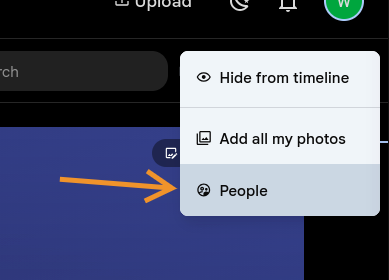
The People page shows a grid of all recognized people in the space. From here:
- Editors can rename a person by clicking their name.
- Editors can merge duplicate people via the hover context menu.
- Clicking a person opens their detail page with all their photos from the space.
Show and Hide People
Editors can manage which people appear in the space by clicking Show & hide people in the top-right corner of the People page. This opens a full-screen modal where you can:
- Click individual people to toggle their visibility.
- Use the bulk toggle button to cycle through: show all, hide unnamed, hide all.
- Use the reset button to undo unsaved changes.
- Click Done to save.
Hidden people are excluded from the people strip on the space cover, the filter panel, and search results. They can be unhidden at any time by returning to the Show & hide people modal.
Face Matching
When face recognition is enabled and new photos are added, a background job automatically matches detected faces against existing people in the space. If no match is found, a new person entry is created. When face recognition is first enabled on a space that already has photos, all existing photos are processed.
Why space people counts may differ from Explore
The number of people in a shared space is often smaller than the number on your personal Explore page, even though every photo in the space contributes its faces. That is expected. Space clustering is more aggressive than personal clustering, by design.
How personal face recognition works (Explore):
Face clustering runs per user. For each new face, Gallery finds the nearest existing face in the same user's library and, if they're similar enough, assigns both to the same person. Two people with strong resemblance but no connecting face will stay separate. The algorithm only ever adds. Once two personal people exist, Gallery will not merge them on its own.
How shared space face recognition works:
Shared spaces have to handle two things the personal pipeline doesn't:
- Multiple contributors. If Alice and Bob are both members of a space, Alice's personal "Dad" and Bob's personal "Dad" are two different people in the personal system (they belong to two different user libraries). In the space, they should appear as one person.
- Per-space naming. Naming, hiding, and merging in a space must not affect anyone's personal library.
To make that work, the space runs an extra space-person deduplication pass after face matching. It compares every pair of space people and merges any two whose representative faces are within the similarity threshold. This pass runs repeatedly until no more merges happen.
The pass is what lets cross-contributor bridging work (one "Dad" instead of two). As a side effect it also merges look-alikes from a single contributor that the personal clustering had kept apart, so a space holding one member's photos usually shows slightly fewer people than that member's Explore page.
Summary:
| Personal (Explore) | Shared Space | |
|---|---|---|
| Clustering threshold | Same | Same |
| Scope | Per user | Per space |
| Post-pass consolidation | No | Yes (merges similar people across all contributors) |
| Result | More separate entries, even for look-alikes | Fewer, more consolidated entries |
Personal clustering is cautious and keeps entries apart. Space clustering consolidates, to keep the member-facing people list tidy. They optimize for different goals.
Space Colors
Each space can have an assigned color, chosen during creation or changed later by an Owner or Editor. Colors are used for:
- Gradient backgrounds on space cards (when no cover photo or collage is available)
- Hero banner gradients on the space detail page
Ten colors are available, matching the user avatar color palette.
Connected Libraries (Admin)
Server administrators can link external libraries to shared spaces. Every photo in the library then appears in the space automatically. This is the way to share a large existing collection, say tens of thousands of photos on an external hard drive, without picking photos one by one.
How It Works
When a library is linked to a space, all assets from that library are included in the space's timeline, asset count, map and search results, resolved at query time with no data duplication. New photos that future scans import into the library appear in the space with no delay.
Photos from linked libraries can coexist with manually added photos in the same space. If the same photo exists in both a linked library and as a manually added asset, it appears only once (automatic deduplication).
Requirements
To link or unlink a library, both conditions must be met:
- The user must be a server administrator (libraries are an admin-only concept).
- The user must be an Editor or Owner of the target space.
Linking a Library
-
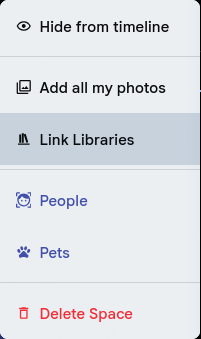
Open the space and click the three-dot menu (⋮) in the top-right corner.

-
Select Link Libraries (visible only to admins).
-
In the modal that opens, select a library from the dropdown.
-
Click Link.
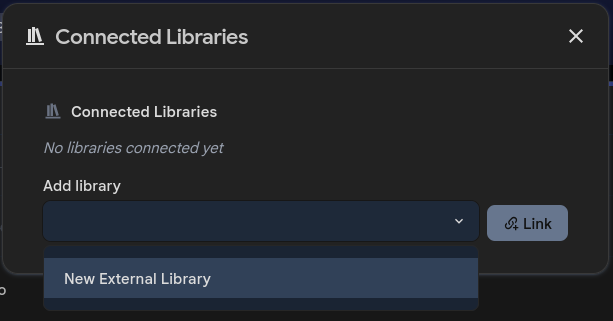
All assets from the selected library immediately appear in the space.
If face recognition is enabled on the space, a background job will automatically process faces from the library's photos. For large libraries, this may take some time to complete.
Unlinking a Library
- Open the Link Libraries modal from the three-dot menu (⋮).
- Click Unlink next to the library you want to remove.
- Confirm the removal.
Library assets disappear from the space immediately. Any photos from that library that were also added to the space by hand via Add photos will remain: unlinking removes the automatic library link and leaves individual asset references in place.
Permissions for Library Assets
Space members browse and download library-linked assets exactly as they do ones added by hand. Editors can update metadata on library-linked assets. The library owner retains full ownership of the underlying files.
Editing metadata on a library-linked asset requires the library's folder to be mounted read-write. Gallery writes these edits to an .xmp sidecar next to the original file, so on a read-only (:ro) mount the change is applied and then reverted shortly afterwards, with no error shown. This affects date and time, location, description, star rating and tags. See Mount Docker Volumes.
Limitations
- One-way only. Photos other members add to the space are not imported back into the library.
- All or nothing. Linking a library includes all its assets. To share only specific photos, add them by hand instead of linking the library.
- Admin-only. Regular users cannot see or manage library links. They just see the photos in the space.
Differences from Partner Sharing
| Feature | Partner Sharing | Shared Spaces |
|---|---|---|
| What is shared | Entire library | Specific photos you choose |
| Direction | One-way | Multi-directional |
| Access control | All-or-nothing | Owner/Editor/Viewer roles |
| Multiple groups | No | Yes, unlimited spaces |
| Storage cost | None (same assets) | None (reference-based) |
| Face recognition | Separate | Shared across space |
| Timeline merging | Partner toggle | Per-space toggle |
API
Shared Spaces are accessible via the REST API under the /shared-spaces endpoint group. There are 26 endpoints covering space CRUD, member management, asset management, library linking, activity log, map markers, and space-scoped face recognition (people CRUD, merge, aliases, thumbnails).
Technical Implementation
Database Schema
Shared Spaces introduces 8 new tables in PostgreSQL:
┌──────────────────────┐       ┌──────────────────────────┐
│    shared_space       │       │         user             │
├──────────────────────┤       └──────────┬───────────────┘
│ id (UUID PK)         │                  │
│ name (text)          │                  │
│ description (text?)  │◄─── createdById ─┘
│ color (varchar?)     │
│ faceRecognitionEnabled│
│ thumbnailAssetId ────┼──────► asset
│ thumbnailCropY (int?)│
│ lastActivityAt       │
│ createdAt, updatedAt │
└──────────┬───────────┘
           │
     ┌─────┴──────┬──────────────┬───────────────────┐
     ▼            ▼              ▼                   ▼
┌──────────┐ ┌──────────┐ ┌───────────────┐ ┌────────────────────┐
│  member  │ │  asset   │ │   activity    │ │      person        │
├──────────┤ ├──────────┤ ├───────────────┤ ├────────────────────┤
│ spaceId  │ │ spaceId  │ │ id (UUID PK)  │ │ id (UUID PK)       │
│ userId   │ │ assetId  │ │ spaceId       │ │ spaceId            │
│ role     │ │ addedById│ │ userId        │ │ name               │
│ joinedAt │ │ addedAt  │ │ type (varchar)│ │ thumbnailPath      │
│showIn    │ └──────────┘ │ data (jsonb)  │ │ representativeFace │
│ Timeline │              │ createdAt     │ │ isHidden, birthDate│
│lastViewed│              └───────────────┘ │ createdAt,updatedAt│
│ At       │                                └─────────┬──────────┘
└──────────┘                                    ┌─────┴─────┐
                                                ▼           ▼
                                        ┌────────────┐ ┌──────────┐
                                        │person_face │ │person_   │
                                        ├────────────┤ │alias     │
                                        │ personId   │ ├──────────┤
                                        │ assetFaceId│ │ personId │
                                        └────────────┘ │ userId   │
                                                       │ alias    │
                                                       └──────────┘
Additionally, the shared_space_library table links spaces to external libraries:
┌──────────────────────┐       ┌──────────────────────┐
│   shared_space       │       │      library          │
└──────────┬───────────┘       └──────────┬────────────┘
           │                              │
           ▼                              ▼
     ┌─────────────────────────────────────────┐
     │          shared_space_library            │
     ├─────────────────────────────────────────┤
     │ spaceId (FK → shared_space, PK)         │
     │ libraryId (FK → library, PK)            │
     │ addedById (FK → user, nullable)         │
     │ createdAt                               │
     └─────────────────────────────────────────┘
All tables prefixed shared_space_ in the actual schema. Composite primary keys are used for member (spaceId, userId), asset (spaceId, assetId), library (spaceId, libraryId), person_face (personId, assetFaceId), and alias (personId, userId).
Architecture
The feature follows the standard NestJS layered architecture:
- Controller (
shared-space.controller.ts). 26 REST endpoints under/shared-spaces, with role-based permission checks. - Service (
shared-space.service.ts). Business logic including role validation (Owner > Editor > Viewer hierarchy), activity logging, and background job orchestration. - Repository (
shared-space.repository.ts). Kysely-based data access with 70+ methods covering all 8 tables.
Key Mechanisms
Reference-based sharing. The shared_space_asset table is a pure junction table linking spaces to existing assets. No file duplication occurs; the same asset row is referenced by the space and the owner's library. For linked libraries, assets are resolved at query time via shared_space_library JOIN asset.libraryId, and no rows are copied into shared_space_asset.
Timeline integration. Three independent switches, each with exactly one job: shared_space_member.showInTimeline (space → my timeline, mine alone), shared_space_album_hidden (album → my timeline, mine alone), and shared_space_album.showInTimeline (album → the space's own Photos tab, shared, editor-settable). Personal timeline resolution starts from getSpaceIdsForTimeline(userId) for spaces I show. The hiddenFromOwnTimeline predicate builder (shared-space-album-scope.ts) then subtracts assets whose only path into a space I'm a member of is one I've hidden. A photo disappears from a member's timeline only when every path it has into a space is hidden by that member; any other visible path (a different album, a direct space add, a second space) keeps it showing. The two "my timeline" flags are private to their own owner: nobody else can change what appears in your library, which is what makes it safe for a per-user flag to subtract from a personal timeline. The space's own Photos tab is governed only by shared_space_album.showInTimeline, identically for every member, and it never varies per user. None of the three switches restrict access; they only change what appears in a timeline or a tab. See specs/2026-08-31-space-hide-from-timeline-design.md for the full resolution semantics.
Activity log. Every mutation (add/remove assets, member changes, metadata updates) inserts a row into shared_space_activity with a type enum and a data JSONB column for event-specific metadata (e.g., asset IDs, old/new values, who invited whom). The feed is paginated with a default page size of 50.
New since last visit. The lastViewedAt timestamp on each membership is updated via PATCH /shared-spaces/:id/view when a user opens a space. The newAssetCount and lastContributor fields in the response DTO are computed by querying assets added after this timestamp.
Face recognition (space-scoped). Space-scoped people are separate from personal people. When face recognition is enabled and assets are added, the service queues SharedSpaceFaceMatch jobs. Each job fetches face embeddings from the asset and runs a vectorchord similarity search (<=> operator) against existing space people. Matches within the configured distance threshold are linked; unmatched faces create new person entries. Person aliases allow each member to set their own display names for recognized people.
Connected libraries (query-through). When an admin links a library to a space via the shared_space_library junction table, no asset data is copied. Instead, every query that resolves "assets in this space" uses a SQL UNION of two sources:
- Manual assets.
shared_space_asset, the rows members added individually. - Library assets.
shared_space_libraryJOINassetonlibraryId, every asset belonging to the linked library.
The UNION (not UNION ALL) automatically deduplicates assets that appear in both sources. This query-through pattern is applied consistently across 14 query sites: asset counts, recent assets, new asset counts, map markers, timeline buckets (both spaceId and timelineSpaceIds paths), validation helpers (isAssetInSpace, isFaceInSpace), face-matching helpers (getAssetIdsInSpace, getSpaceIdsForAsset), and access control (checkSpaceAccess, checkSpaceEditAccess). All library-side UNION branches filter asset.deletedAt IS NULL and asset.isOffline = false to exclude deleted and offline assets.
Face recognition for linked libraries uses two mechanisms:
- On link creation. A
SharedSpaceLibraryFaceSyncorchestrator job batch-processes all library assets with detected faces, 1000 at a time, reusing the extractedprocessSpaceFaceMatchmethod. - On ongoing library scans. The
handleSyncFilesmethod inLibraryServicechecks whether the scanned library is linked to any spaces and queues individualSharedSpaceFaceMatchjobs for newly imported assets.
The admin-only "Libraries" tab in the space panel (SpaceLinkedLibraries component) provides the UI for linking and unlinking. The linkedLibraries field in SharedSpaceResponseDto is only populated when the requesting user is an admin.