Face Cleanup
What it is
Face recognition clusters faces into people automatically, and occasionally it fuses two of them: an identity merge pulls in faces that belong to someone else, and one person's page quietly fills up with another person's photos. It happens with people who look alike, with runs of photos in bad light, and with children photographed across a decade.
The Face Cleanup console finds those mixed clusters and lets an admin re-home the misfiled faces to their true owner.
The affected person keeps all of their real faces, their name and their thumbnail. The tool is not a person-merge: by default it only moves the scan-flagged faces and leaves the cluster intact. An admin can also open the whole cluster to add faces the scan missed, or move an entire unnamed cluster into its owner in one action. See Seeing the whole cluster.
Cleanup handles the faces recognition assigned incorrectly. For the ones it was too cautious to assign at all, see Face Suggestions. Both write to the same verdict layer, so a decision made in either is permanent and is respected by the other.
When to use it
If someone's People page shows photos that clearly belong to a different person, run the Face Cleanup console.
Gallery's automatic repair already handles clusters that are lightly contaminated (under 50% misfiled faces). The console handles the rest: the "over-cap" clusters where the contamination is high enough that a human should confirm before anything moves.
Two ways to clean up
Administration → Face cleanup opens a chooser with two modes. They write exactly the same records, so a decision made in either is permanent and is respected by the other, and by every future scan.
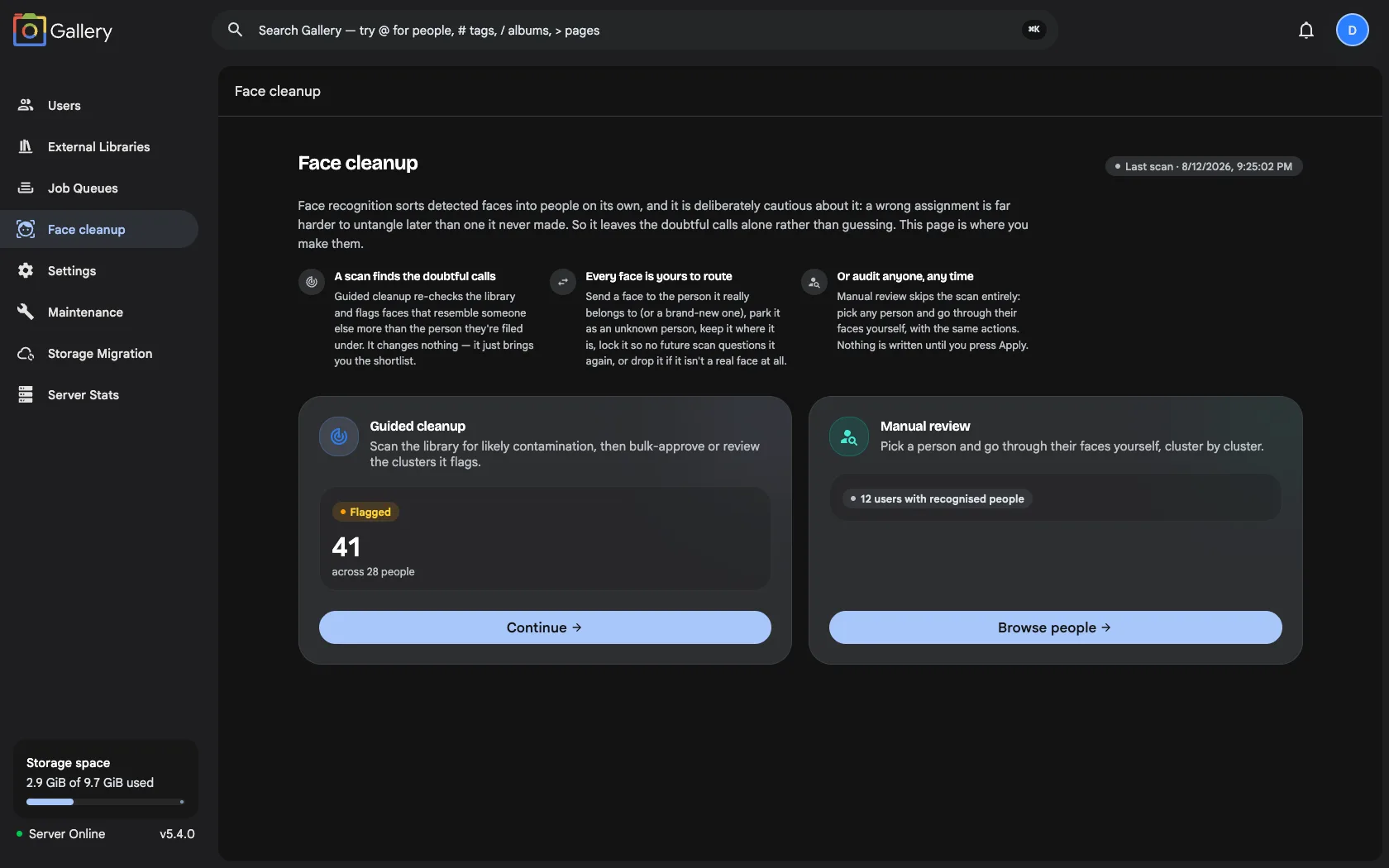
| Guided cleanup | Manual review | |
|---|---|---|
| Starts from | a scan | a person you pick |
| Shows you | the faces the scan flagged, worst first | every face on that person |
| Best when | you want the likeliest mistakes found for you | you already know whose cluster is wrong |
| Needs a scan? | yes | no, it works on a brand-new instance |
Guided cleanup is the rest of this page. Manual review is described under Manual review.
Neither mode is the official way to do it. If you already know that a particular person's photos are wrong, going straight to manual review beats scanning the whole library and hunting for them in the results.
While a scan is running, manual review is unavailable. Applying changes during a scan would conflict with the snapshot being built, so the chooser disables it until the scan finishes rather than letting you stage a pile of decisions and lose them.
How to use it
- Go to Administration → Face cleanup and choose Guided cleanup.
- Click Re-scan. The scan runs while the facial recognition queue is idle; it completes in seconds to minutes depending on the number of faces on the instance.
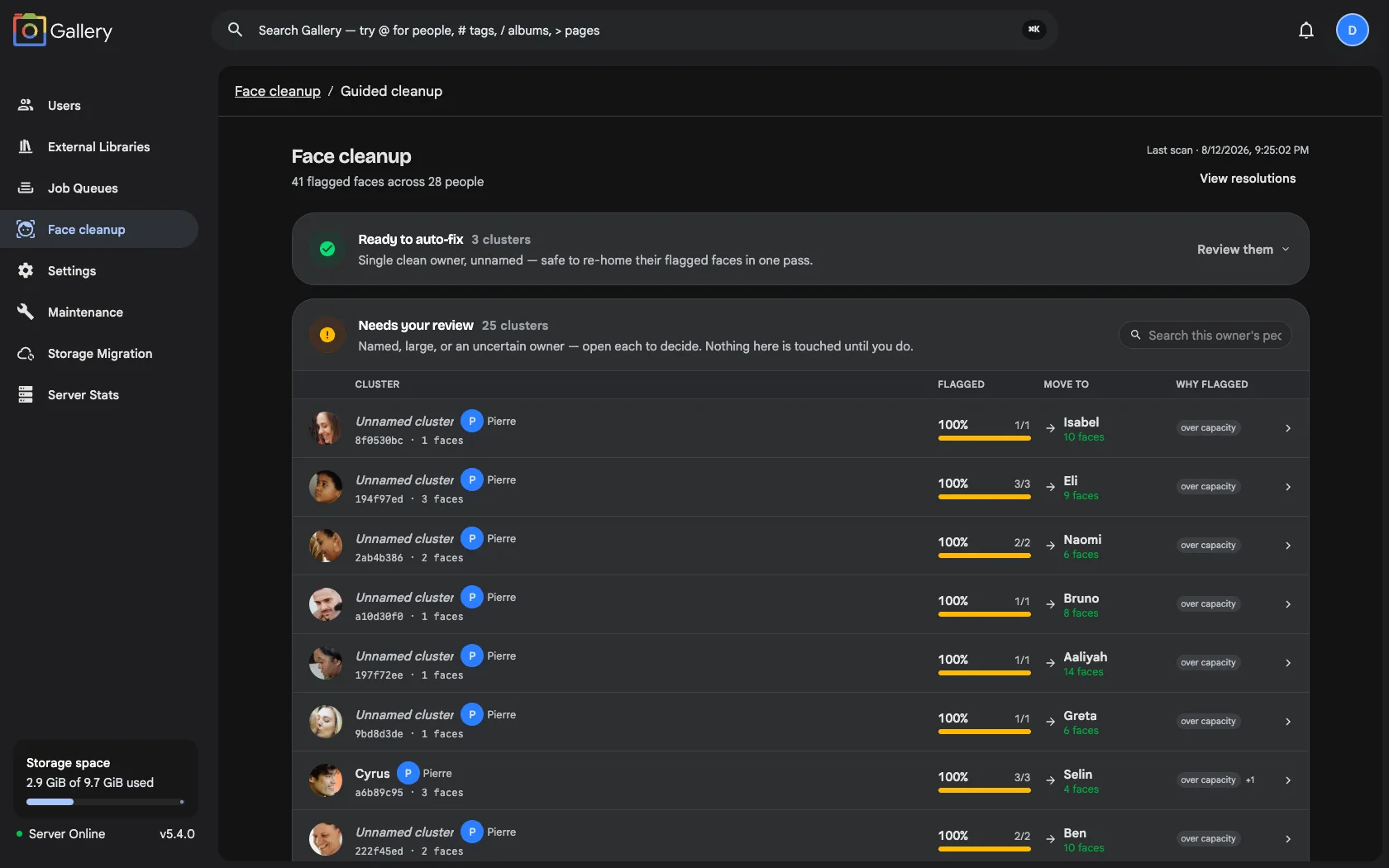
- Work the two lanes the scan sorts flagged clusters into:
- Ready to auto-fix holds unnamed, small clusters with a single clean owner. Nothing here needs opening: Approve all re-homes the whole batch in one action, or approve them one at a time. Use Exclude from this batch to hold a cluster back, or Review them to open the lane and go face by face instead.
- Needs your review holds named people, large clusters, and clusters whose misfiled faces route into another
flagged cluster (badged
also flagged). Nothing here is touched until you open it. Open each row, decide each face (see the six actions), then press Apply.
The two lanes are independent: approving the auto-fix batch does not touch anything in the review lane, and vice versa.
Operating order
Clean owner-first: start with the people that have the smallest flagged percentage. Rows badged also flagged
mean their suspected owner is itself flagged. Resolve the owners first and those rows turn green in the next scan.
The six actions
On a person's review page, every flagged face has to end in one of six states before that person leaves the cleanup queue. Nothing is written until you press Apply.
Each tile also carries a magnifier and a capture-date label. Click the magnifier to view the original photo the face was cropped from; opening it never stages a decision or changes a tile's selection. The date is only a label: clicking it lands on the tile underneath and toggles selection.
| Action | What it does |
|---|---|
| Move to owner | the default. Sends the face to the person the scan thinks it actually is |
| Move to person... | sends it to someone you pick instead, including a new person |
| Keep here | the face really is this person; declines the suggestion so future scans drop it |
| Confirm & lock | like Keep here, but permanent and owner-agnostic: no future scan can flag it |
| Unknown person | a real face that isn't this person and you can't name; parks it in its own cluster |
| Not a face | retires the crop entirely. This is the only irreversible action |
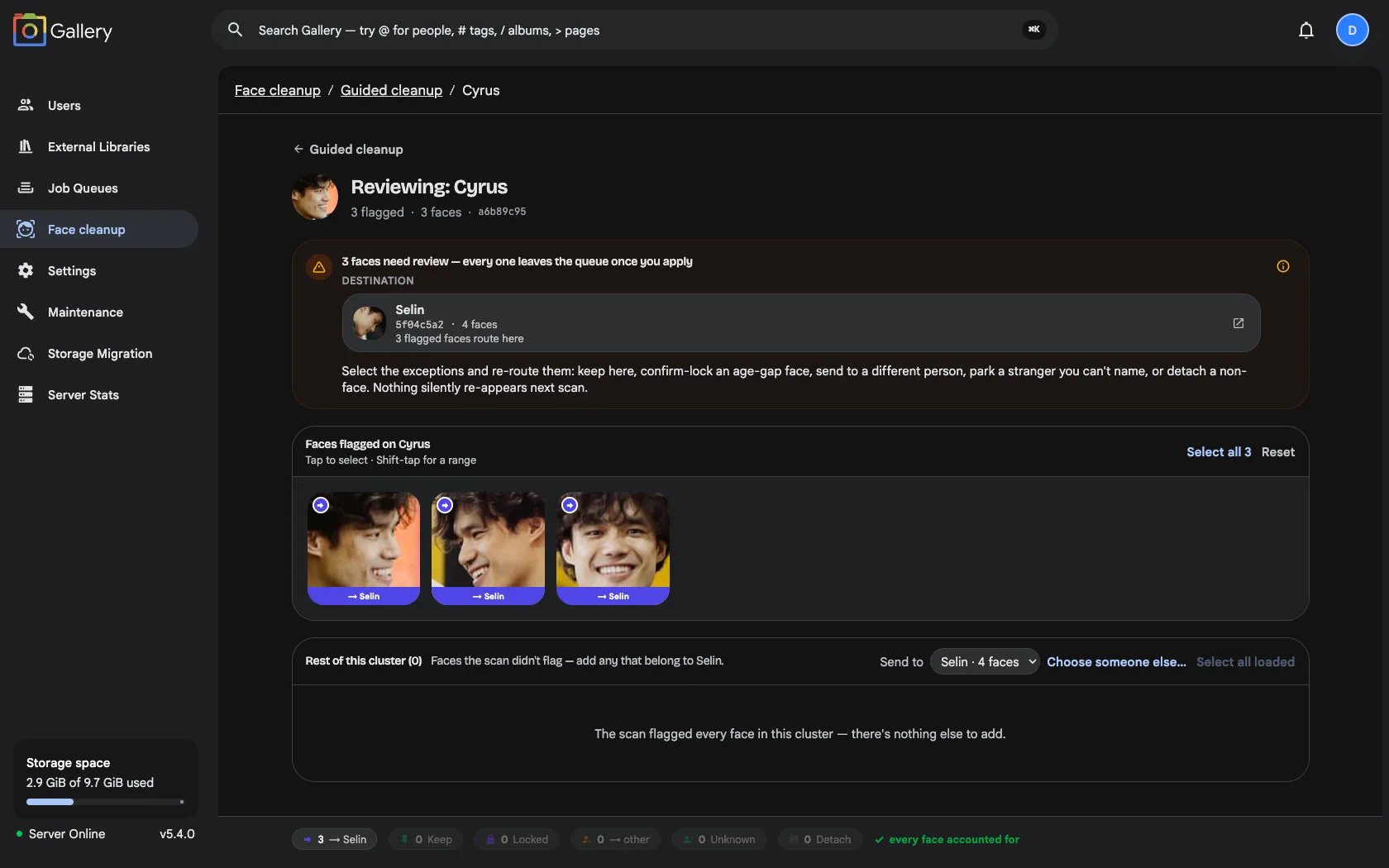
Keep here versus Confirm & lock is the distinction worth learning. Keep here answers one scan's question, so a later scan that suspects a different person can flag the face again. Confirm & lock silences it for good, survives the person being merged or deleted, and is the right choice for faces that genuinely don't resemble their owner: childhood photos, big age gaps, costumes, heavy shadow.
Declines and locks can be undone later from the Resolutions page.
Seeing the whole cluster
The review page opens on the scan's suggestions, the misfiled faces the detector flagged. The scan only flags the faces it is confident about, and sometimes you want to act on the rest of the cluster too. Below the suggestions, the Rest of this cluster section lists every other face still assigned to the person, loaded a page at a time. Clusters can hold thousands of faces, so the list pages with Load more instead of loading them all at once.
Two extra actions sit on that section:
- Add individual faces. Click any face in the Rest section to add it to the move. It goes to the destination already shown on the screen, the cluster's primary suspected owner, which is where the suggested faces are heading. Use Select all loaded to add every face currently on screen. The Stays/Moves strip and the Move N faces button update live to include your picks.
- Move the entire cluster. When the unnamed cluster is entirely one person, Move entire cluster sends every remaining face, suggestions included, to the primary owner in one action. It empties the cluster, so it asks for confirmation first.
Emptied clusters
Moving an entire unnamed cluster into its owner empties it, and the empty cluster is then deleted so no orphan placeholder is left behind. The result reads like a clean merge into the owner. A named person emptied this way is kept, because its name is deliberate state, and simply drops off the console.
The destination is always the one owner shown on the screen. There is no per-face destination picker. If the scan snapshot no longer knows a primary owner for the cluster, the add-faces and move-entire-cluster actions are disabled; the suggestions can still be applied to their per-face owners as usual.
Manual review
Manual review lets you audit any person without running a scan first.
- Go to Administration → Face cleanup and choose Manual review.
- Pick the owner, then search or browse to the person.
- The review page lists every face on that person, suspicious or not.
- Select the faces that are wrong and apply an action.
The interaction is the same as guided review: select tiles, then apply. Each tile keeps its magnifier for viewing the original photo without staging a decision. The actions differ slightly, because no scan has made a suggestion to accept or reject:
| Action | What it does |
|---|---|
| (default) | Nothing. Faces you do not touch are left exactly as they are |
| Move to person... | reassigns the face to another person in the same owner's library |
| Confirm & lock | records that you verified this face, so future scans never flag it |
| Unknown person | a real person you cannot name; parks the face in its own new cluster |
| Not a face | retires the crop entirely. This is the only irreversible action |
| Unmark | undoes a mark you have not applied yet |
Faces you leave alone are not recorded. That is deliberate: marking every face you glanced at as human-verified would stop future scans from ever flagging them, hiding real mistakes later. If you want that permanence for a particular face, use Lock on purpose.
The consequence is that re-auditing the same person later starts from a clean slate.
Working through a large cluster
The page loads faces in pages, so Select all covers the faces currently loaded. The header shows
showing N of M, so you always know the difference. Marks and selections survive loading more.
To act on an entire cluster without paging through it, use Move entire cluster, which is resolved on the server and requires you to pick a destination.
Unattributable faces
Some contaminating faces have no confident external owner: their embedding does not resemble any other person's cluster strongly enough to make a safe assignment. Those faces are left alone on purpose, since moving them to an arbitrary cluster would create new errors. They appear in the Unattributable stat tile and count towards the totals, but they are never presented for action.
Advanced scan
The Advanced button next to Re-scan opens a tuning modal for a single scan run. Three knobs are exposed, pre-filled with the instance's effective defaults:
- Match sensitivity (0.1–1, default = the facial-recognition maximum distance setting, typically 0.5) sets how close two faces must look to be treated as the same person. Lower is stricter (fewer matches), higher is looser.
- Matching faces required (≥ 1, default = the facial-recognition minimum faces setting, typically 3) sets how many of a face's lookalikes a person must already own before the scan treats them as its likely owner. The same number also decides when a person is too small to be credited with its own faces: a face whose current person holds fewer than this is flagged as soon as a credible alternative owner exists, without having to beat it on votes. People below the threshold are therefore checked more closely, so raising this value flags more small clusters.
- Contamination cap (0–1, default 0.5): if more than this share of a person's faces look wrong, the whole cluster goes to review-only instead of auto-repairing. Higher means more aggressive auto-repair.
Tuned values apply to that scan run only. They are stored with the scan, so the review page and the apply step compute with the same values, and they are never saved as new defaults. Re-opening the modal always shows the server defaults again.
Dismissing false positives
If the scan flags something that is actually correct, you can teach it to stop asking:
- Dismiss (row action in the Needs your review lane) drops the whole cluster from the queue. It will not reappear in future scans unless new evidence shows up, such as a different suspected owner.
- Keep here and Confirm & lock (per-face, on a person's review page) record that an individual face belongs to the person it is already on. See The six actions for how the two differ.
Reviewing and undoing decisions
View resolutions on the scan page opens Administration → Face cleanup → Resolutions, a log of every "this
face is not that person" decision recorded on the instance, both from the admin console and from the face
suggestions users review on their own People pages. Filter by All sources, Admin cleanup, or User
reviews.
Each entry has an Undo action that clears the decision, so the face becomes eligible to be flagged or suggested again.
Moves are not listed here. Resolutions records negative decisions ("not this person") and locks. To reverse a move, open the affected people on the People page and reassign the faces.
The face-suggestion distance
Face suggestions use their own distance, which must be greater than the facial-recognition maximum distance. A suggestion is by definition a face that recognition was not confident enough to assign, so an equal or lower value can never surface anything.
When you have not set the suggestion distance yourself, it defaults to 0.7, or the recognition distance plus 0.2 if that is higher. This matters on upgrade: an instance that had already raised its recognition distance to 0.7 or beyond gets a suggestion distance derived from it, rather than an inverted band that would refuse to start (config-file installs) or reject every settings save (database installs).
Once you set the value explicitly it is yours, and is never adjusted again. If you later raise the recognition distance above it, saving is rejected with a message naming both numbers. Raise the suggestion distance to match. At the schema maximum of 2 no valid band exists, so suggestions are switched off and a warning is logged.
Safety
- The scan and the apply step both refuse to run while facial recognition is active. If you see a 409 conflict message, wait for the recognition queue to drain and try again.
- Applying a repair assigns the misfiled faces directly to their suspected owner (an admin-confirmed manual assignment). The move is immediate and durable: facial recognition never re-clusters a manually assigned face, so the faces cannot drift back to the wrong person. Once an apply succeeds the affected rows leave the list.
- All moves are reversible: open the affected people on the People page (or run a new scan and use the console) to move faces back if needed.
- A fully-contaminated cluster (every face flagged) is always classified Review these first with an
over-capbadge, and can never be bulk-approved through the pre-selection. Approving it from its review page moves all of its faces, after which the emptied person is removed by the regular cleanup job. - Instances that ran a pre-release build of this feature must be reset rather than upgraded in place. A handful of fork migration names that shipped in early release candidates were later renamed or removed when the face review and cleanup engines were unified. A database that recorded one of those names has no matching migration file on disk in later builds and fails to boot with a "corrupted migrations" error naming the missing migration. There is no automatic upgrade path. Reset the instance with a fresh database instead of carrying it forward.
See also
- Face Suggestions: reviewing the near-miss faces recognition declined to assign
- Facial Recognition: how clustering works, and the settings that govern it