Storage Template
Gallery allows the admin user to set the uploaded filename pattern at the directory and filename level as well as the storage label for a user.
You can read more about the differences between storage template engine on and off here
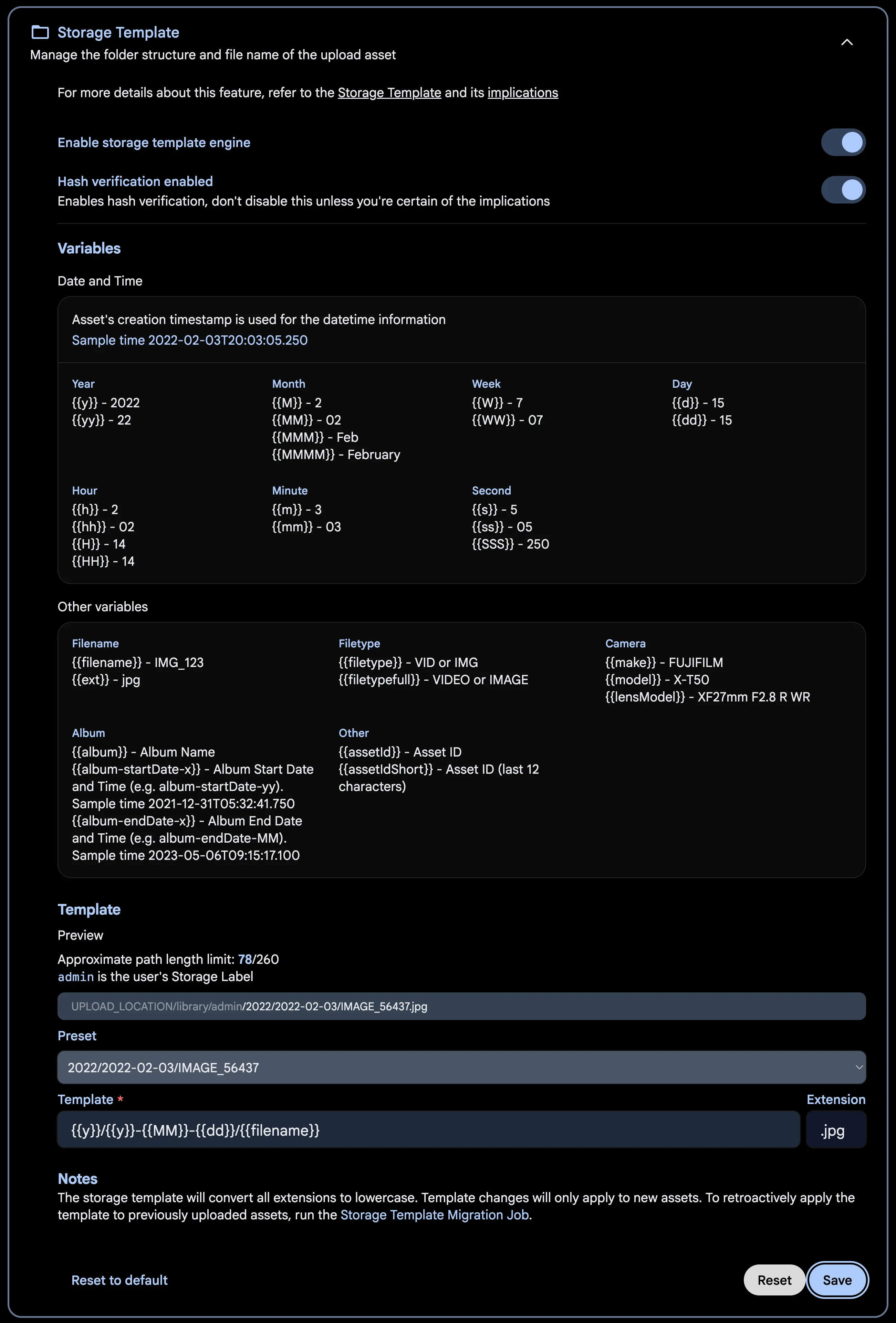
The admin user can set the template by using the template builder in the Administration -> Settings -> Storage Template. Gallery provides a set of variables that you can use in constructing the template, along with additional custom text. If the template produces multiple files with the same filename, they won't be overwritten as a sequence number is appended to the filename.
Date and time variables in storage templates are rendered in the server's local timezone.
Year/Year-Month-Day/Filename.Extension
If you want to change the storage template during the initial setup, first enable the feature.
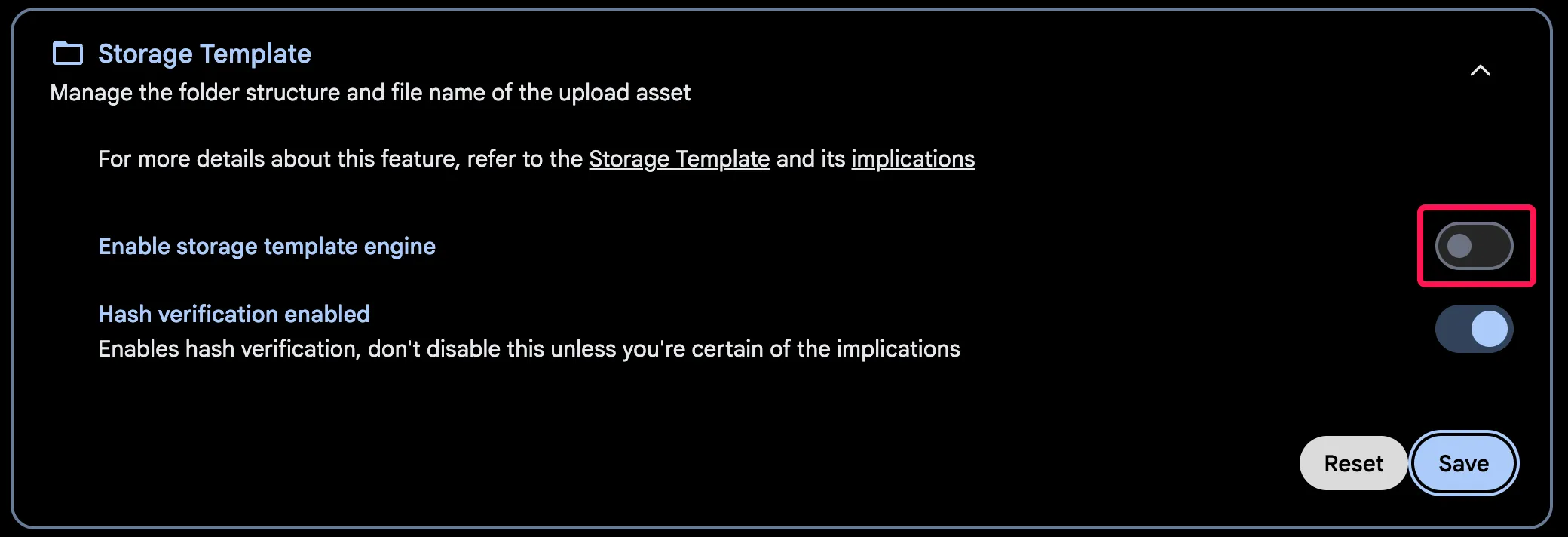
Then, customize your storage template.
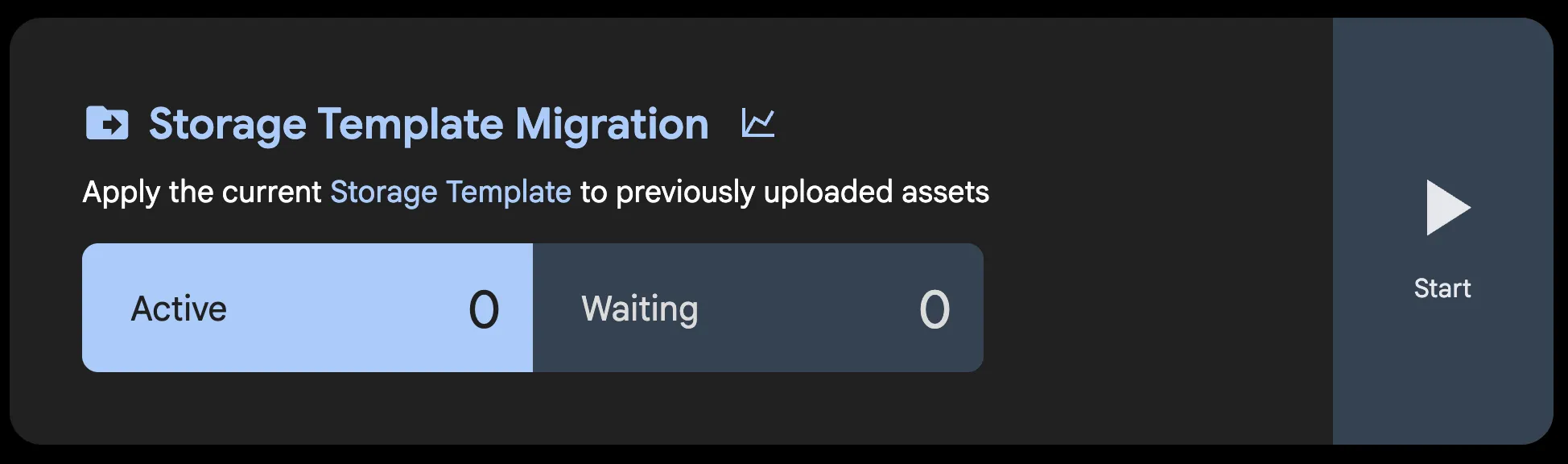
The Storage Template Migration job can be run after enabling this feature or changing the template, in order to apply the changes to the existing library.
If an asset is in multiple albums, {{album}} will be set to the name of the album which was most recently created. By default, special characters will be converted to an HTML entity (for example, & -> &). To prevent this, wrap the variable in an extra set of braces (for example, {{{album}}}). You can learn more about this here and here.
Gallery also provides a mechanism to migrate between templates so that if the template you set now doesn't work in the future, you can always migrate all the existing files to the new template. The mechanism is run as a job on the Job page.
If you want to store assets in album folders, but you also have assets that do not belong to any album, you can use {{#if album}}, {{else}} and {{/if}} to create a conditional statement. For example, the following template will store assets in album folders if they belong to an album, and in a folder named "Other/Month" if they do not belong to an album:
{{y}}/{{#if album}}{{album}}{{else}}Other{{/if}}/{{MM}}/{{filename}}
The storage template also applies to files stored in S3-compatible storage. New uploads move to their template path inside the bucket, as on disk, and the Storage Template Migration job moves existing objects.
One exception: if the server already had photos or videos in S3 and the storage template enabled when it was upgraded to the first Gallery version that applies the template in S3, photos and videos in S3 stay where they are, and new uploads keep their upload path, until an admin runs the Storage Template Migration job once from Administration > Job Queues. From then on, new uploads move automatically. Photos and videos stored entirely on disk keep moving as before, except the motion part of a live photo whose still is in S3, which waits with the still. Uploads keep working normally in the meantime, and a warning in the server log says when this applies. See After Upgrading With Files Already in S3.
See Storage Template on S3 for how a move works there and what it costs.